Recoveryfix Free Document Converter
Convert PDF, DOC, DOCX, PPT, XLS, JPEG, EPUB, HTML, & 12 other formats securely with Recoveryfix Free Document Converter Software. Preview and convert bulk documents for free while preserving their original formatting, layout, fonts, and other data in their original state.


Key Features of Recoveryfix Free Document Converter
- Convert documents, spreadsheets, presentations, web files, eBooks, and other supported file types.
- Supports direct conversion of password-protected document files.
- Convert sensitive or confidential files offline without an internet connection.
- Save entire or specific pages of added documents with Page Filters.
- Extract all or unique emails from the added documents to XLSX, XLS, CSV, & TXT files.
- Copy text from XPS & OXPS files directly from the preview section.
- Add and convert document files without depending on Microsoft 365 or other native suites.
- Multiple preview modes: Zoom In/Out, Single or Multiple Pages for better readability.
- Detects locked documents and unlocks them using passwords provided through a CSV file.
- Convert large and complex document files with Recoveryfix Free Document Converter.
Supported File Formats
Source
- DOC
- DOCX
- ODT
- RTF
- TXT
- XLS
- XLSX
- ODS
- CSV
- PPT
- PPTX
- HTML
- MHTML
- XHTML
- EPUB
- MOBI
- ODG
- XPS
- OXPS
- PDF (PDF/A,PDF/X, PDF/E, PDF/VT, PDF/UA, True, Image-only, Searchable, Static, Interactive, & XFA)
Destination
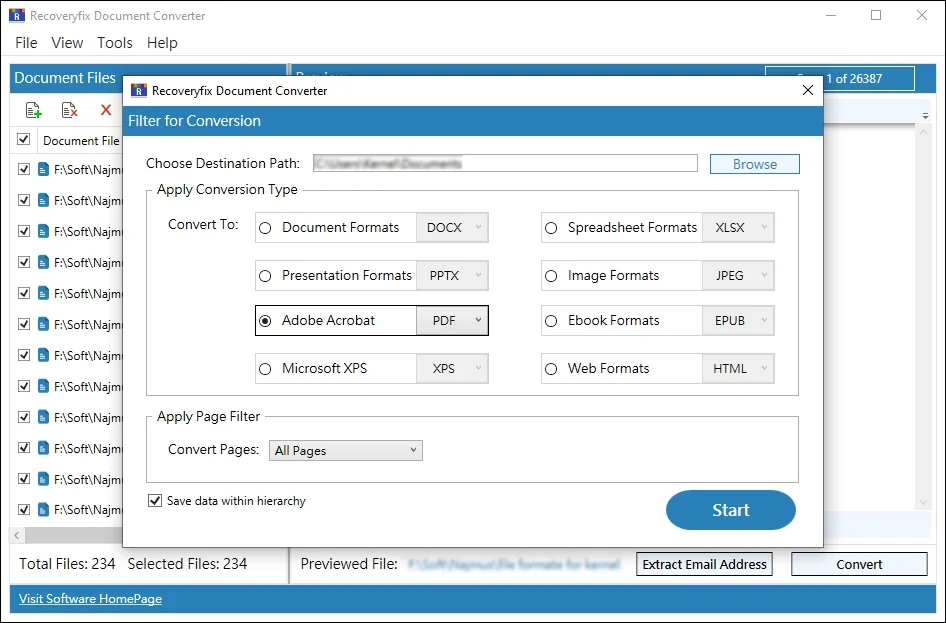
- Adobe Acrobat: PDF
- Ebook Formats: EPUB
- Microsoft XPS: XPS, OXPS
- Web Formats: HTML, MHTML
- Presentation formats: PPTX, PPT
- Spreadsheet Formats: XLSX. XLS, ODS, CSV
- Document formats:
- Image Formats: JPEG, BMP, EMF, TIFF, PNG, GIF, SVG, JPG
How Recoveryfix Free Document Converter Works?
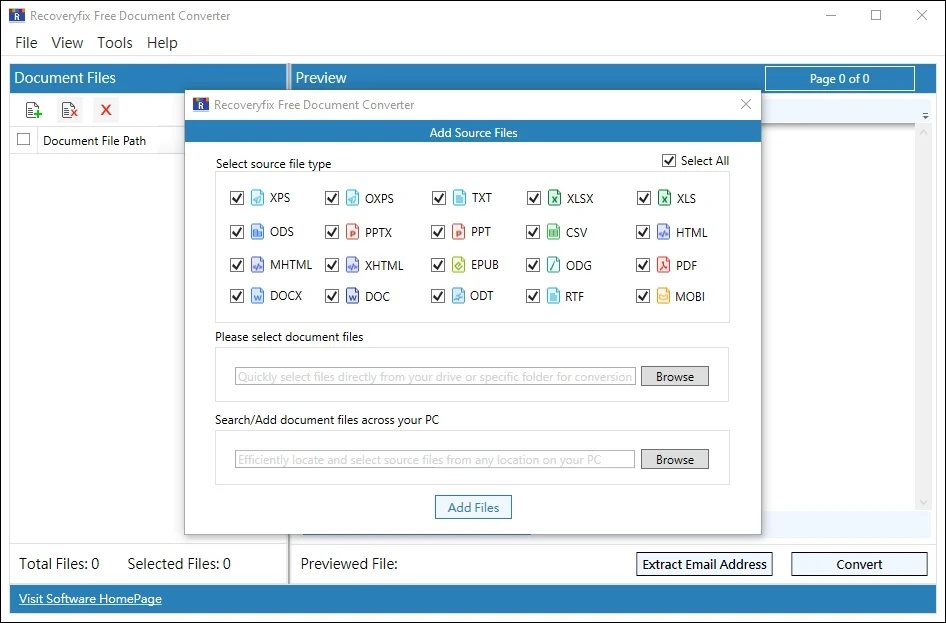
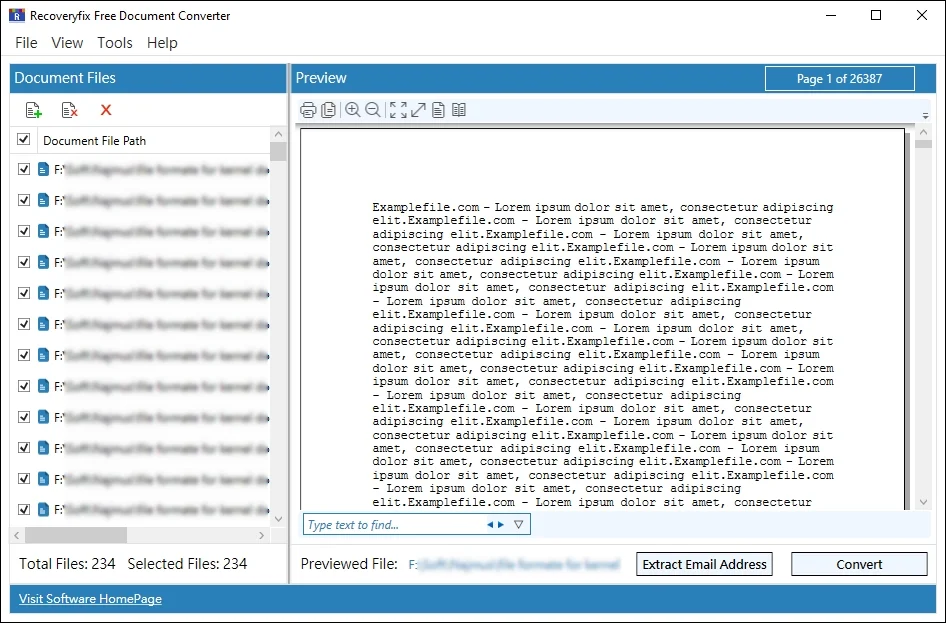
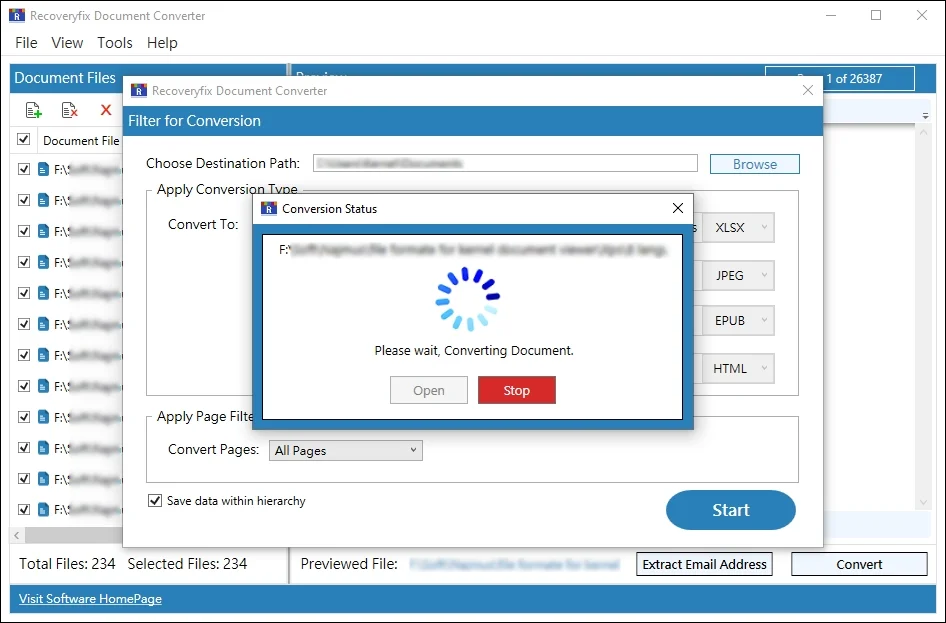
Download Free Document Converter and follow the steps to convert single or multiple document files.
Core Features of Recoveryfix Free Document Converter Software
Take a close look at the features of our tool that make document conversion simple, secure, and accurate.

Convert Documents to Multiple Formats
Convert documents across 20 formats, including DOC, PDF, PPT, XLS, TXT, RTF, HTML, EPUB, and more. The software performs the conversion of spreadsheets, presentations, ebooks, and many other files from a single interface.

Convert Document Files In Bulk
Add a single or entire batch of documents to convert all of them at once. The free batch document converter tool handles conversion of records, archives, reports, or legacy files in large volumes.

Supports Password-Protected Files
Convert password-protected documents without removing the password beforehand with Recoveryfix Free Document Converter Software. It detects locked files automatically and unlocks them within the tool interface via password mapped CSV file.

Secure & Offline Document Conversion
Download Free Document Converter Software by Recoveryfix to convert sensitive or confidential documents without the internet. Keep your restricted documents secure by processing them in a local environment.

Selective Conversion with Page Filters
Select the entire document or specific pages from the added files for conversion. Apply page filters (like All Pages, Even/Odd, Page Numbers or Ranges) to extract a single section, chapter, or excerpt from lengthy documents.

Search and Find Exact Text
Find the required text within documents using whole-word, case-sensitive, diacritic, kashida, alef hamza, & other RTL scripts. Get accurate and precise search beyond standard English-only text matching functionality.

Extract Only Emails from Documents
Extract all or unique email addresses embedded within documents and export them directly to XLS, XLSX, CSV, or TXT files. Easily pull out email addresses from bulk documents without manual search or copy-paste.

Preview Documents with Multiple Modes
Add and preview documents using zoom in/out and single- or multiple-page viewing modes. The bset free Document converter lets you verify the contents of added files before the final conversion.

Convert Documents Without Native Applications
Convert documents without installing Microsoft 365, LibreOffice, Apache OpenOffice, and other native suites. The tool works with zero dependency on third-party programs for document conversion.

Preserves Original Document Content
The Free Document Converter Software makes sure that the document's original content, structure, and formatting remain unchanged. It preserves text, images, videos, tables, styling, hyperlinks, bookmarks, and other properties.

Print Documents Directly
No need to open documents in another application to print them. Select the file and choose your print settings (Printer selection, layout, pages, color & more) to print them directly from the preview window.

Compatible with Multiple Windows Versions
Recoveryfix Free Document Converter works in all Windows versions (11, 10, 8.1, 8, 7, & older ones), as well as Windows Server (2025, 2022, 2019, 2016, & the legacy versions). Get smooth performance on both older enterprise systems and the latest Windows installations.
Common Real-Life Scenarios Covered By Our Tool
Turn your document conversion challenges into one-click solutions using Recoveryfix Free Document Converter Software.
Explore the Upgraded Version to Convert Without Limits
The software's upgraded version removes all restrictions and converts unlimited documents in one go.
- Add & convert documents without limits.
- No restrictions on file count per session.
- Get priority access to customer support.
FAQs: Quick Help & Solutions
Find clear answers about supported formats, conversion capabilities, security, batch processing, and more.
What Does Recoveryfix Free Document Converter Do?
Which file formats does Recoveryfix Free Document Converter support?
How many documents can I convert at once?
Can I convert specific pages from a document?
Does the software support password-protected documents?
Do I need Microsoft Office or another application to convert documents?
Can I preview documents before conversion?
Does the software convert documents offline?
How can I extract email addresses from documents?
- Step 1. Launch the software to Add Files.
- Step 2. Once added, preview the file and click on Extract Email Addresses.
- Step 3. Select the destination path and desired format.
- Step 4. Save All or Unique emails as needed.
- Step 5. Apply Page Filters and start extracting email addresses from added files.
How can I search for specific text within a document?
- Step 1. Open the software to Add Files.
- Step 2. Navigate to the Preview section.
- Step 3. Type text to find using whole-word, case-sensitive, & other RTL scripts.
- Step 4. It will display the searched text.
Is Recoveryfix Free Document Converter really free?
How can I print documents directly from the Software?
- Step 1. Select the source file type.
- Step 2. Browse & Add Files to the software.
- Step 3. Go to the Preview section and click on the Print icon.
- Step 4. Choose the appropriate settings, and it's done.