Recoveryfix Free OST Converter | How It Work?
How to Convert OST to PST Files Using Our Software?
Step 1: Download, install, and launch Recoveryfix Free OST Converter tool.
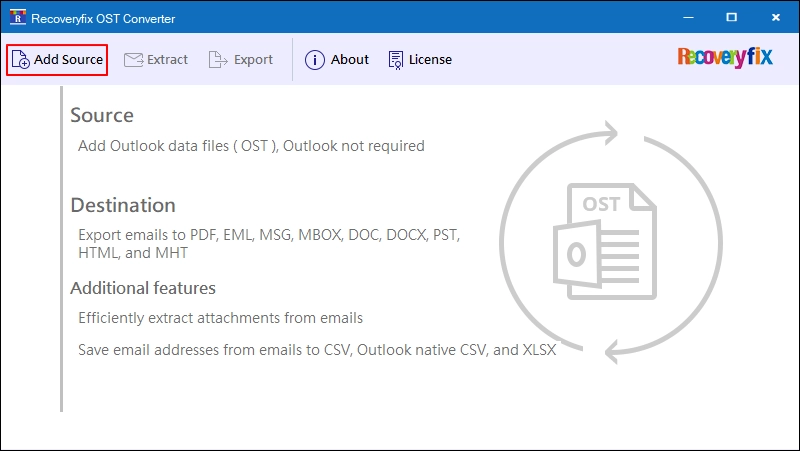
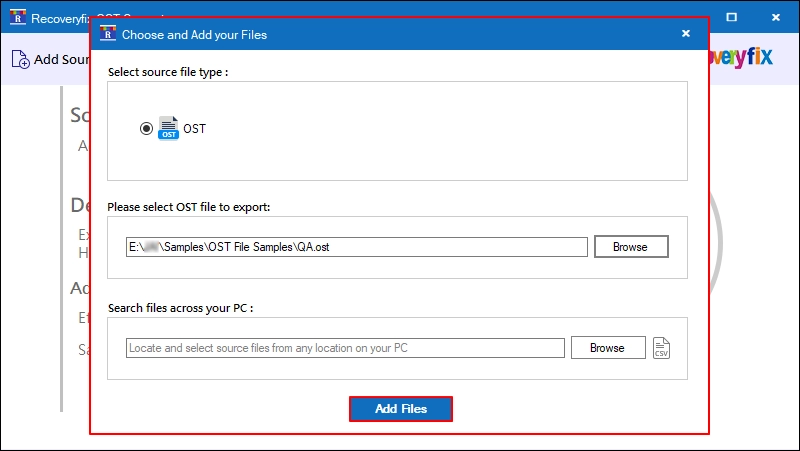
Step 2: Click on Add Source to add OST files.
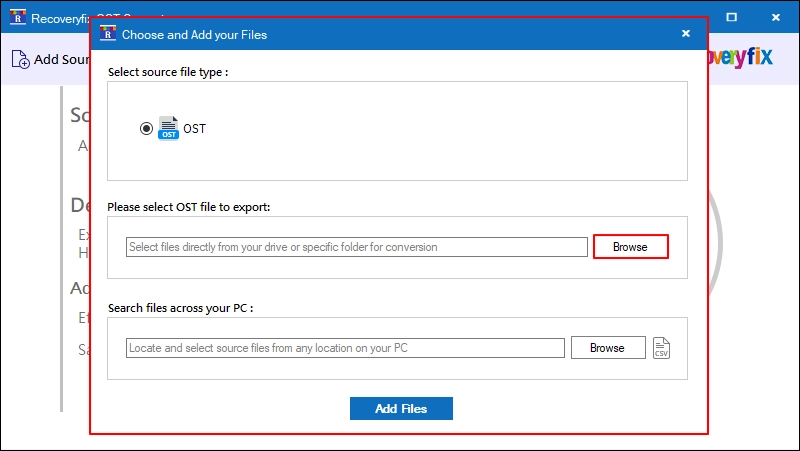
Step 3: Click on Browse under Please select OST file to export option.
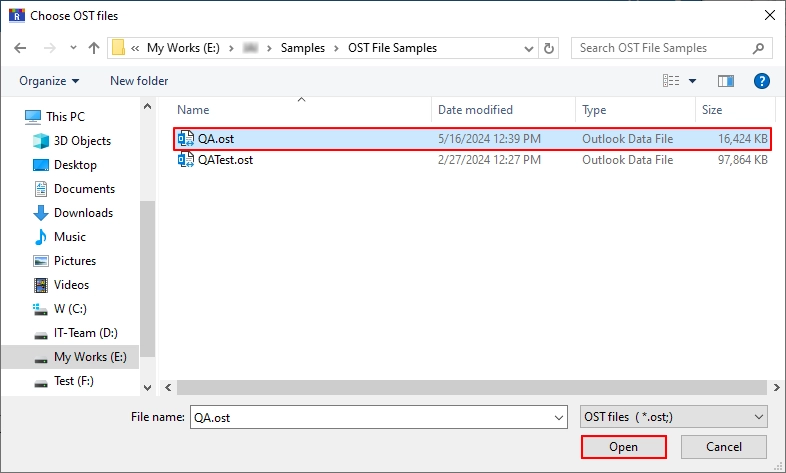
Step 4: Select all your OST files and click Open.
Step 5: Click on Add files.
Note:You can Browse under Search files across your PC to find OST files from the selected Folder or Drives.
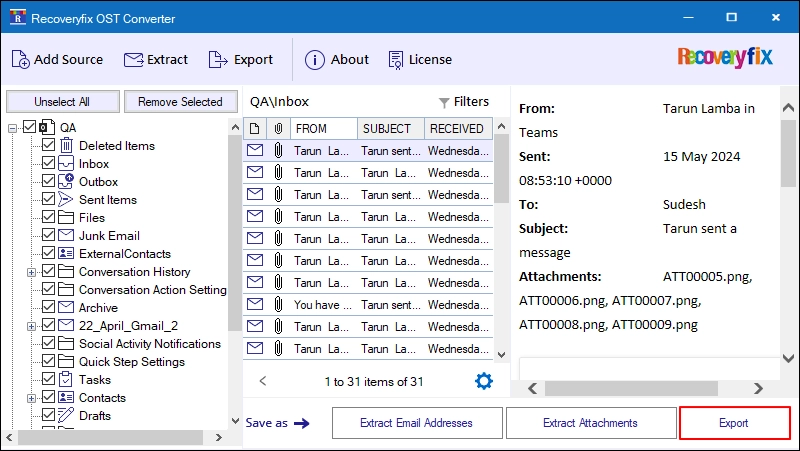
Step 6: The software will show all the OST folders in the original hierarchy.
Select any specific email and view its content in the Preview pane.
Click Export to convert your PST file.
Note:Users can Extract Email Addresses and Attachments separately: Extract Attachments: With this option, you can extract all the email attachments (with or without extension) from your OST file. You can even set a filter to include or exclude any specific attachments from extraction.
Extract Email Addresses:Extract all the email addresses from your Email Items (To, From, Cc, Bcc), Contacts, Calendar, Tasks, and Journal. Save all the email addresses in XLSX, CSV, and Outlook Native CSV file formats.
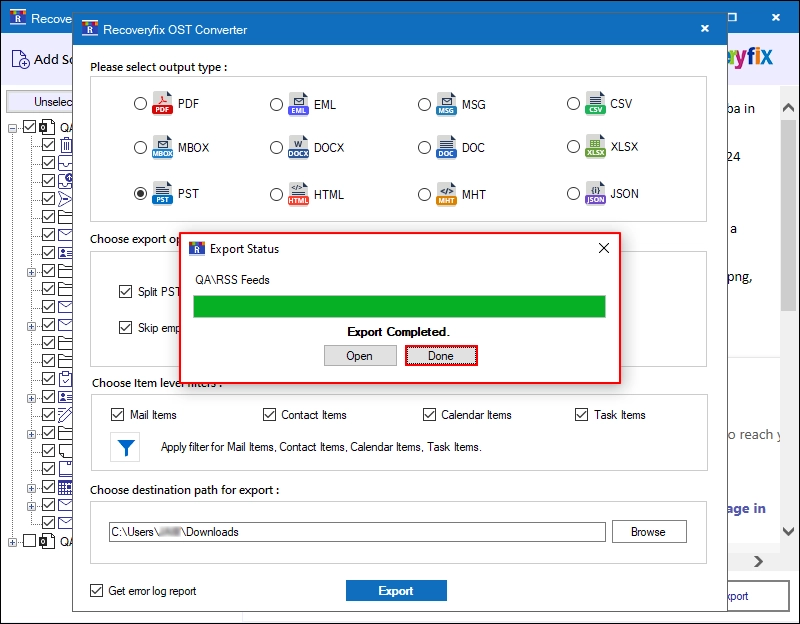
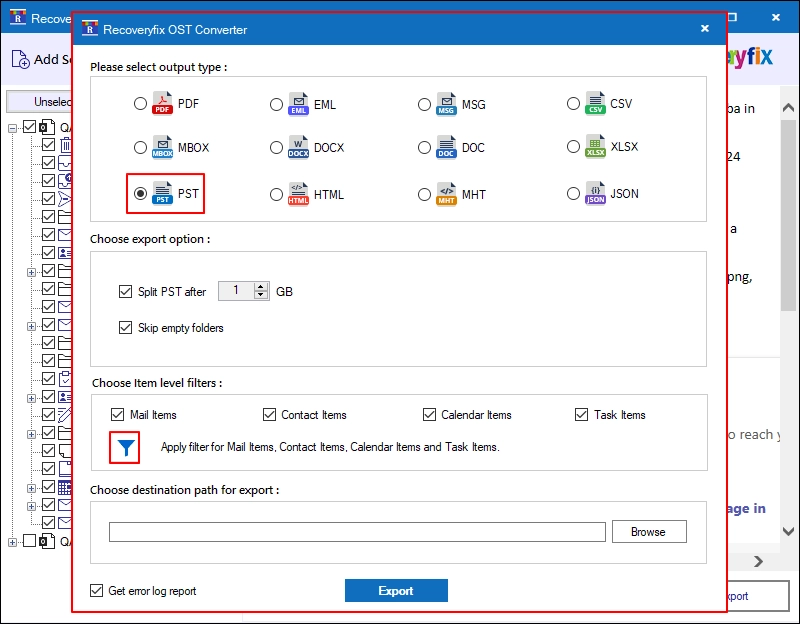
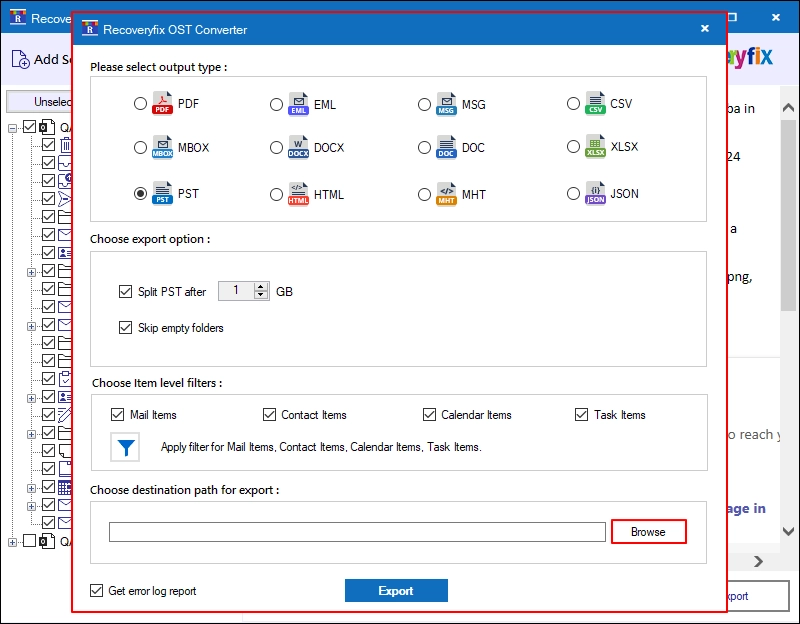
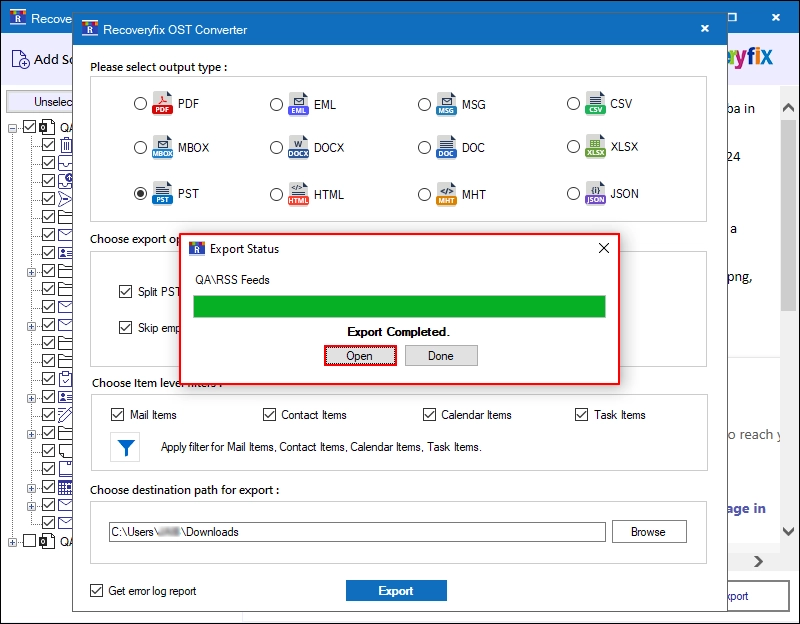
Step 7: Please select output type as PST, choose export options from Split PST after to create multiple resultant PST files, and skip empty folders to exclude empty folders from conversion.
Choose Item Level Filters from Mail Items, Contact, Items, Calendar Items, and Task Items. After that, click the Filtericon to define filters.
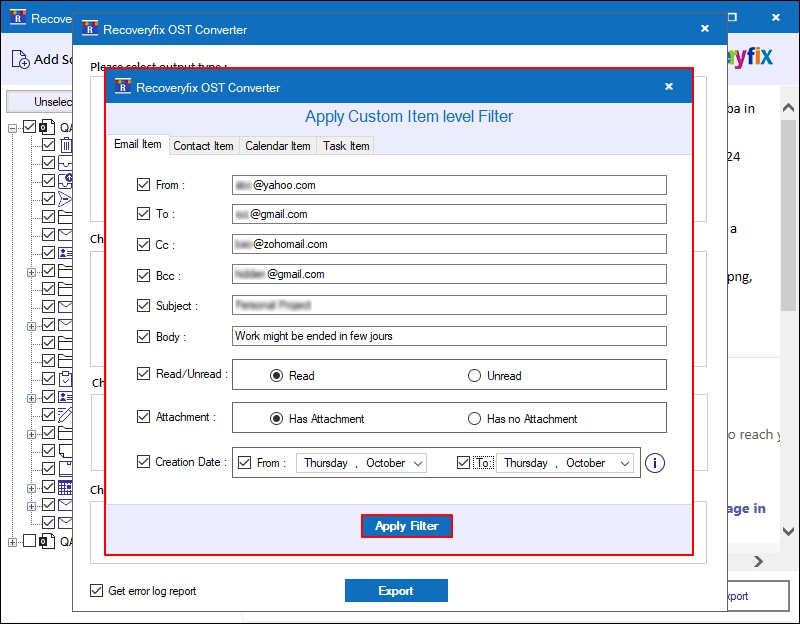
Step 8: Now define filters in Email Item, Contact Item, Calendar Item, and Task Item to get selective data conversion. Click Apply Filter.
Step 9: Click Browse under Choose destination path for export option.
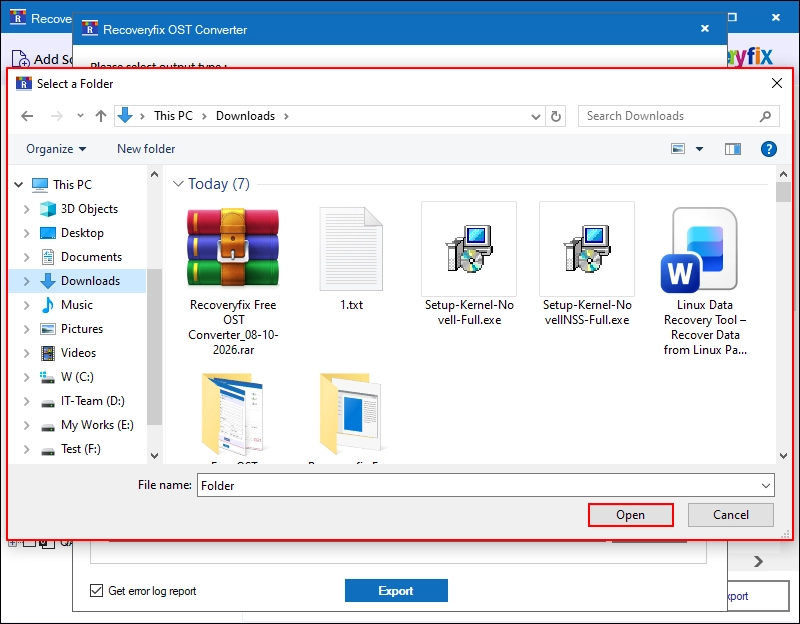
Step 10: Select the output saving location and click Open.
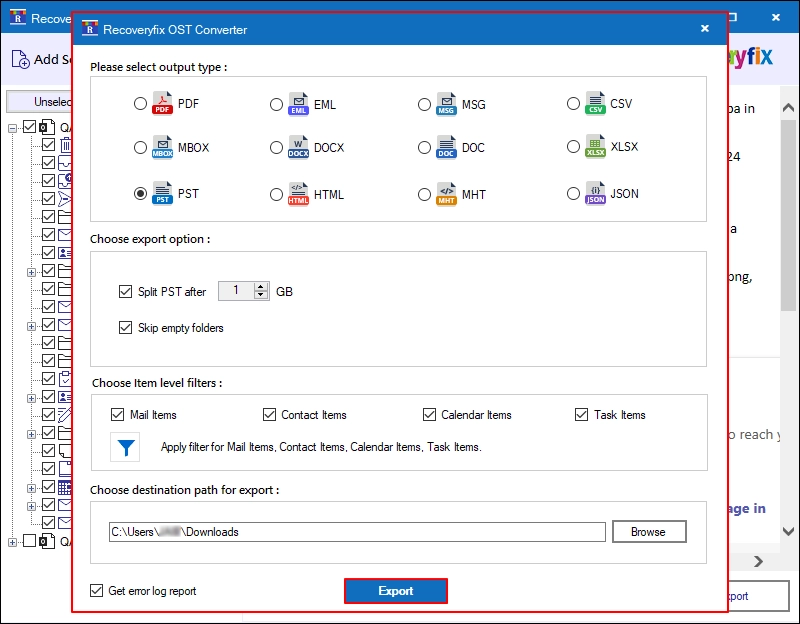
Step 11: Finally, click Export to start the OST conversion.
Step 12:The software will start converting OST files to PST.
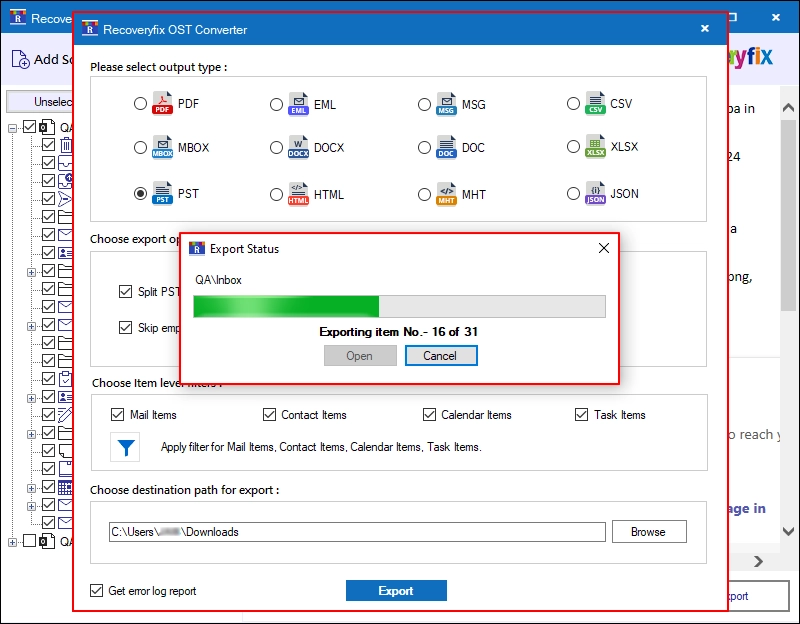
Step 13: After a successful export, click Open to be automatically redirected to the converted file.
Step 14: Check out your resultant OST file and then go back to the tool.
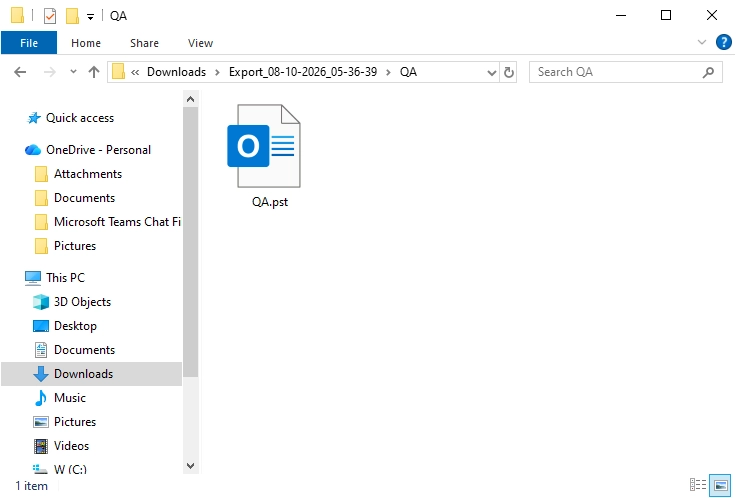
Step 15: Finally, click Done to end the process.