Recoveryfix Free EML Converter | How It Work?
How to Convert EML Files to PST Using Our Software?
Step 1: Download and install the software on your system.
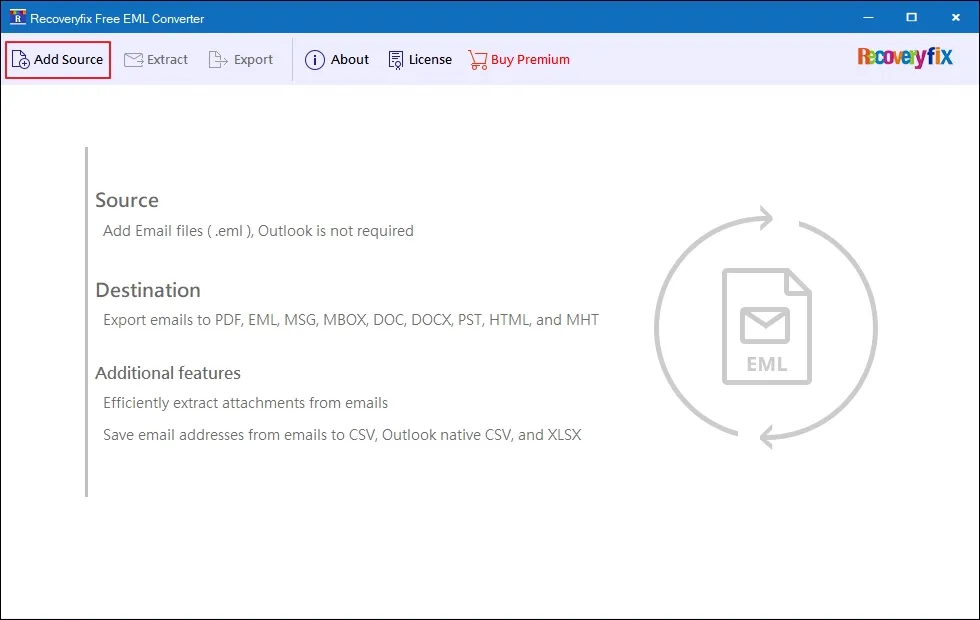
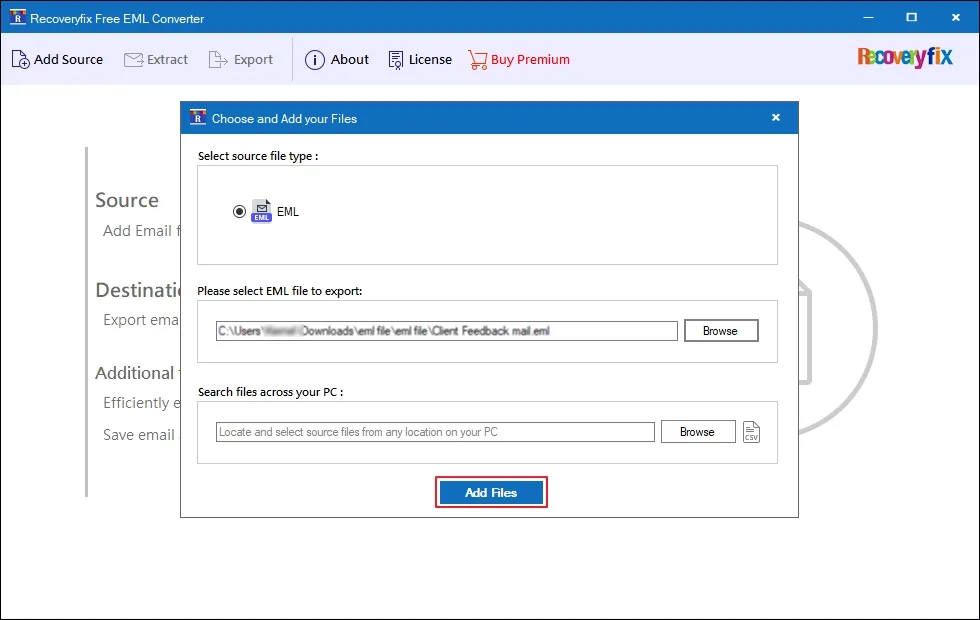
Step 2: Launch the tool and click on Add Source.
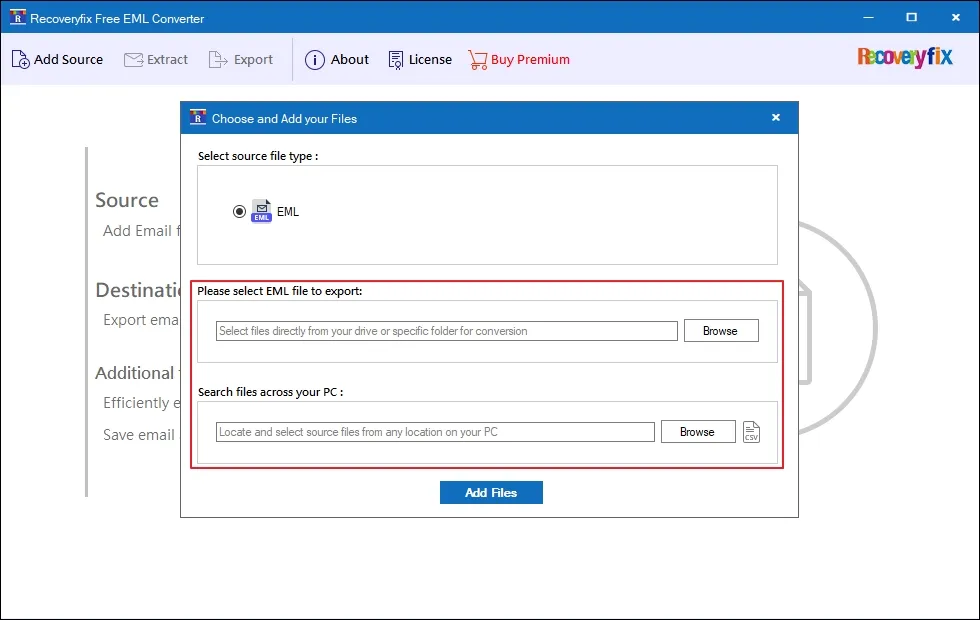
Step 3: Browse to select specific EML files or folders. Also, you can Search files across your PC.
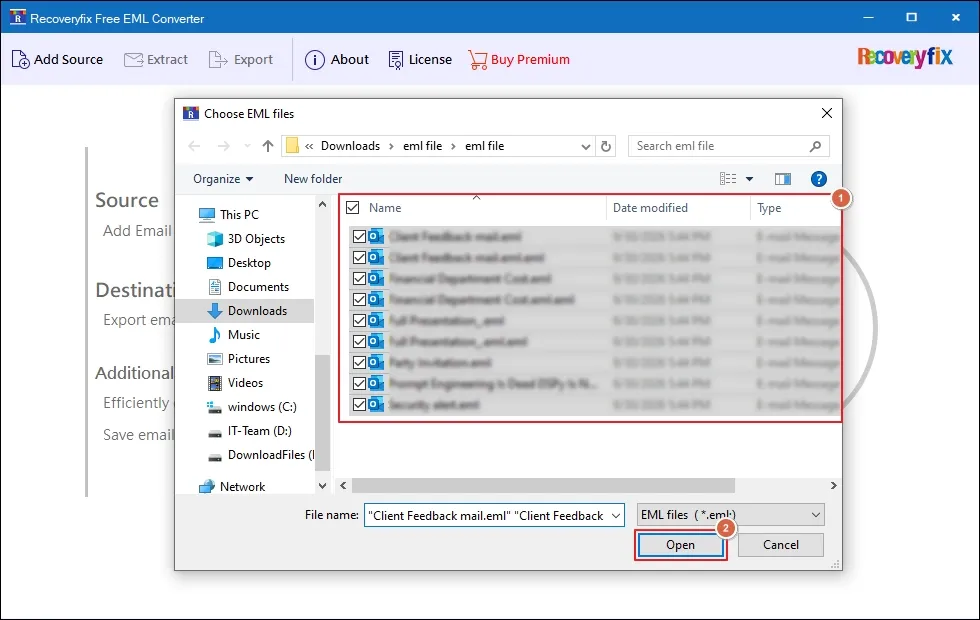
Step 4: Select the EML files and click Open to proceed.
Step 5: Click on Add Files once the location is selected.
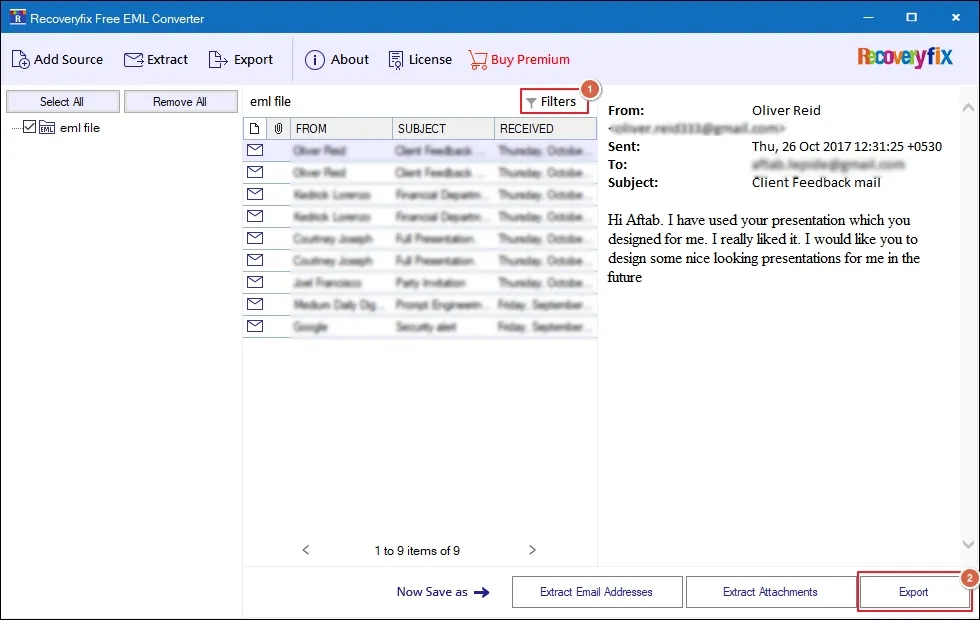
Step 6: Preview emails by clicking on each of them.
- Filters: Apply filters to preview emails using From, To, CC, BCC, Subject, Body, Read/Unread, Attachment, and Creation Date.
- Extract Attachments: Save attachments (also having no extension) separately with the file-extension filter.
- Extract Email Addresses: Export email addresses from Email Items, Contacts, Calendars, Tasks, Journal to CSV, XLSX, and Outlook Native CSV formats.
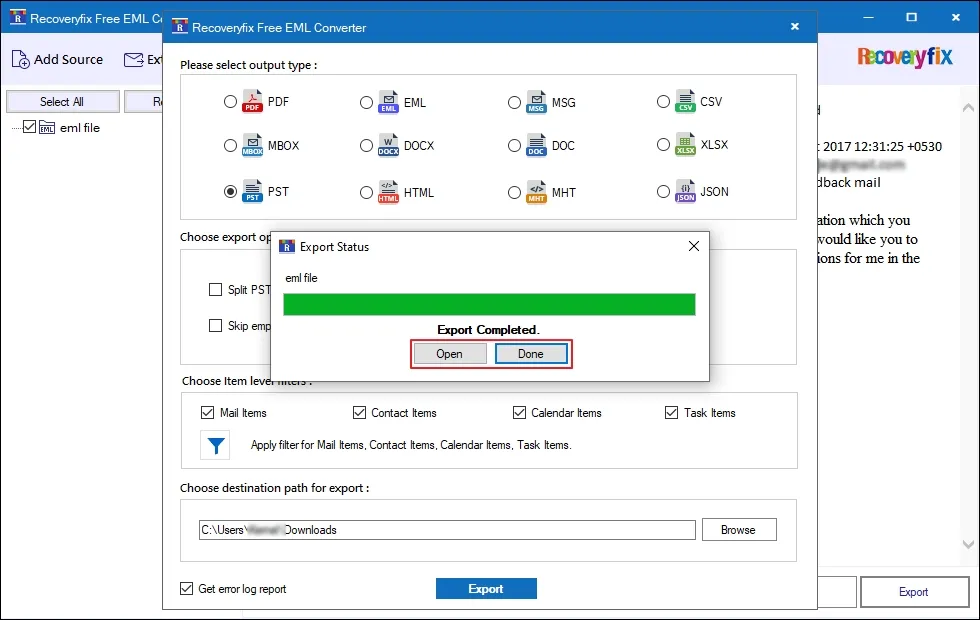
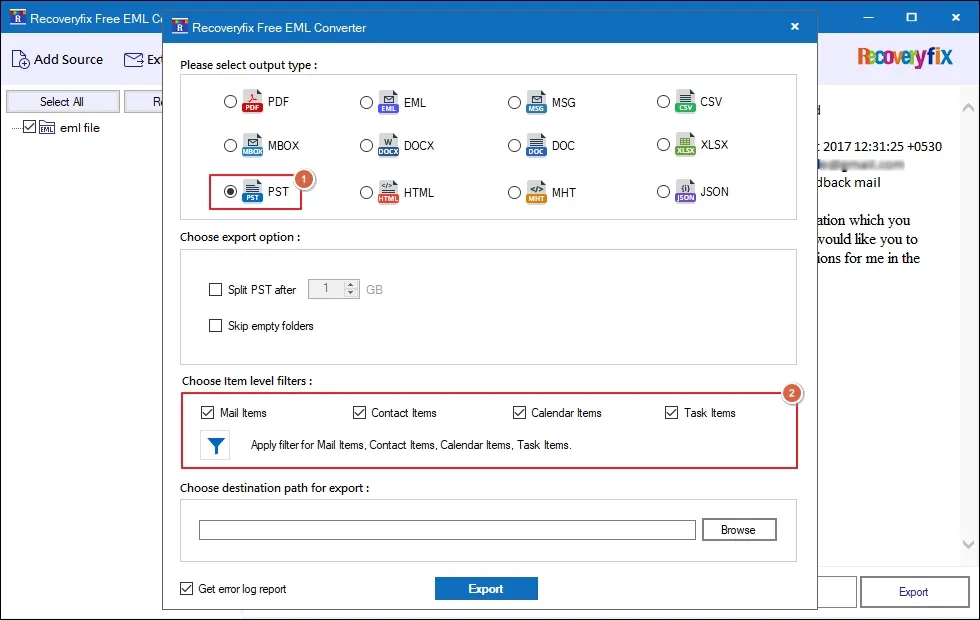
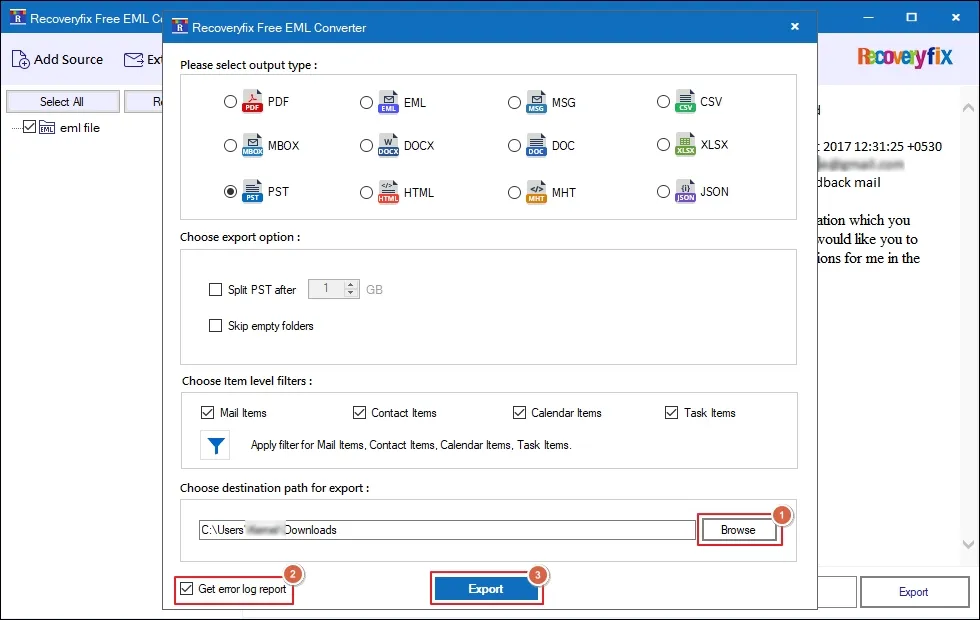
Step 7: Select PST as an output type and Choose Item level filters. Then, click on Filter icon to customize them further.
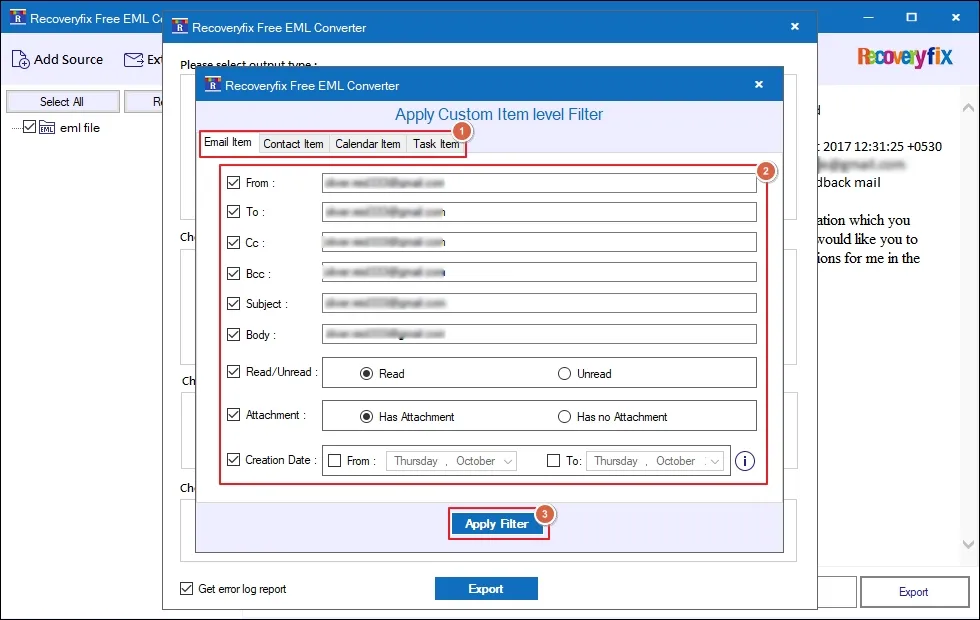
Step 8: Choose the necessary options among Email, Contact, Calendar, Task to customize item level filters.
Step 9: Then, click on Apply Filter to proceed.
Step 10: Browse to select the necessary destination path and click Export.
Note: Check the Get error log report only if required.
Step 11: The software will start converting EML files.
Step 12: After completion, click Open to access the saved files location directly.
Step 13: Later, tap on Done option to close the software.